

Hold Control and click the SKY SCRM icon to open it.
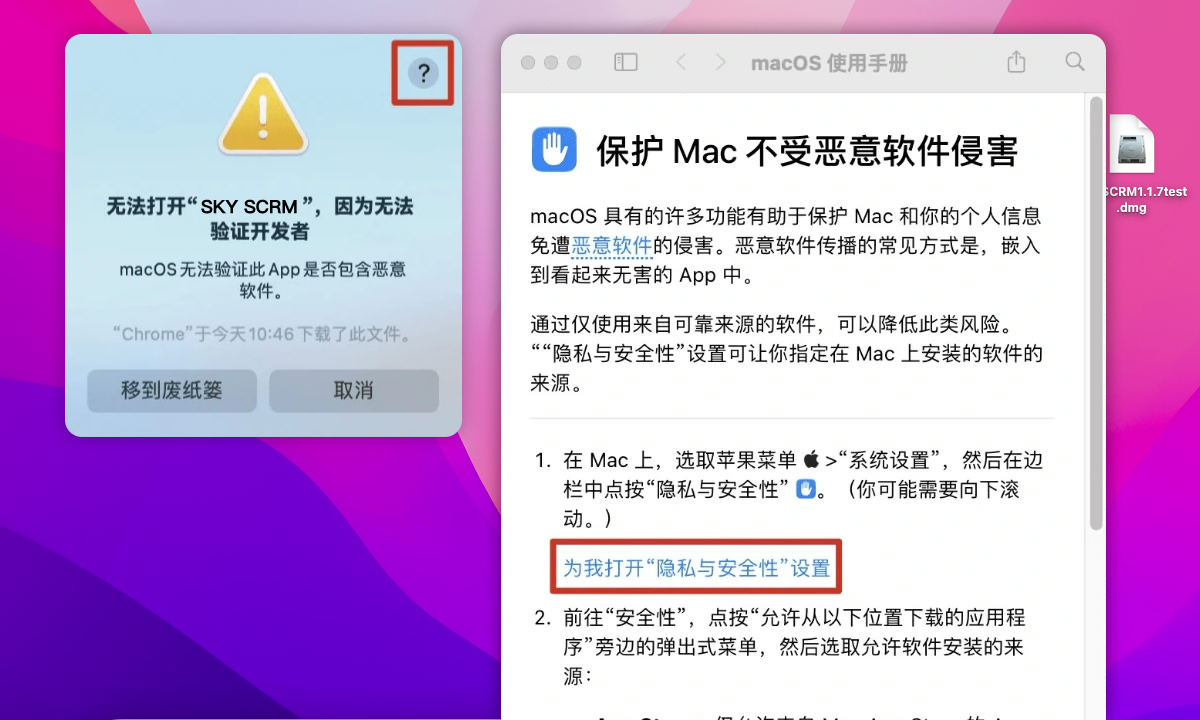
1. Click [?] at the top right, then select Open Privacy & Security settings for me in the macOS user guide.
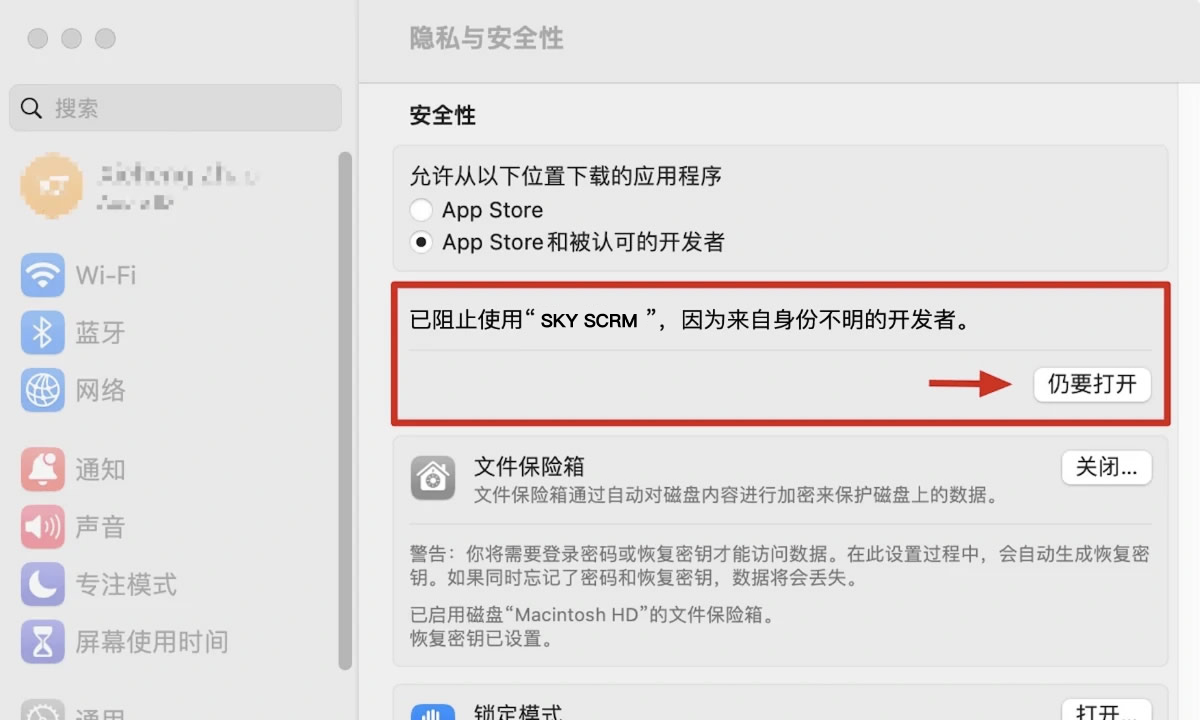
2. In Privacy & Security, scroll to the message stating that SKY SCRM was blocked because it is from an unidentified developer, then click Open Anyway.
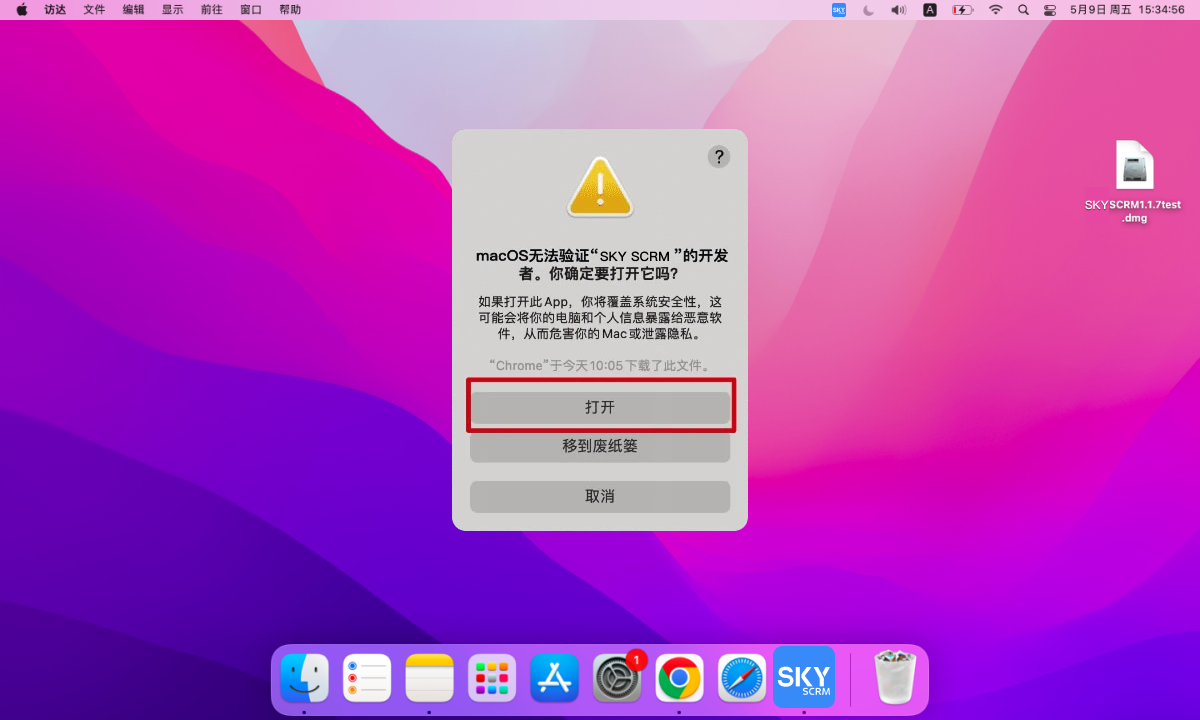
3. Click Open Anyway to open SKY SCRM.
Open Windows Settings, Update & Security, Windows Security, then App & browser control. Turn off the three SmartScreen options to open SKY SCRM.
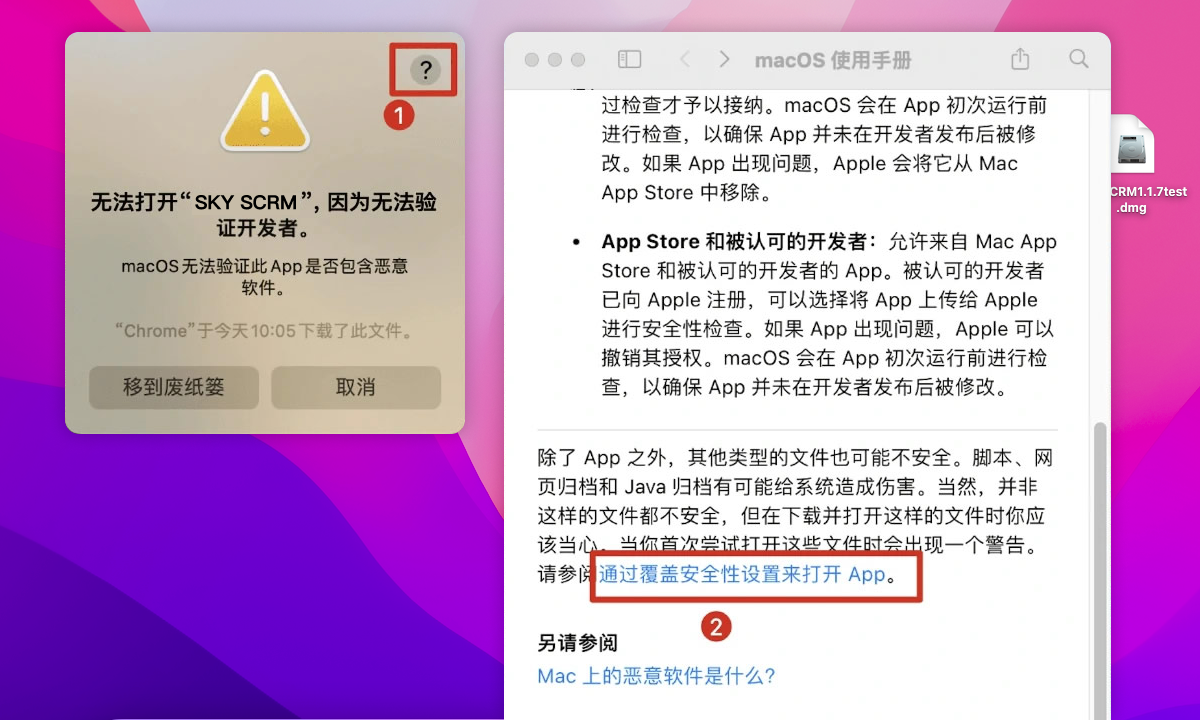
1. Click [?] at the top right of the prompt, scroll through the macOS user guide, and select the section about opening an app by overriding security settings.
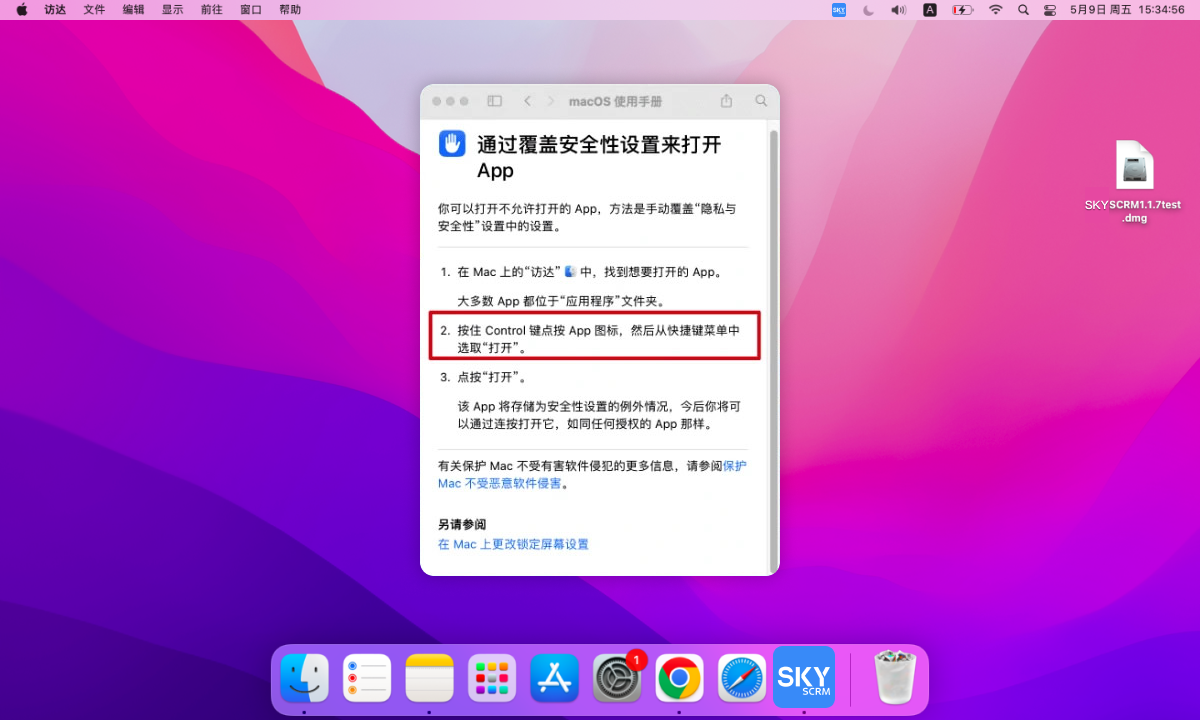
2. The macOS user guide explains that you can hold Control, click the app icon and select Open.
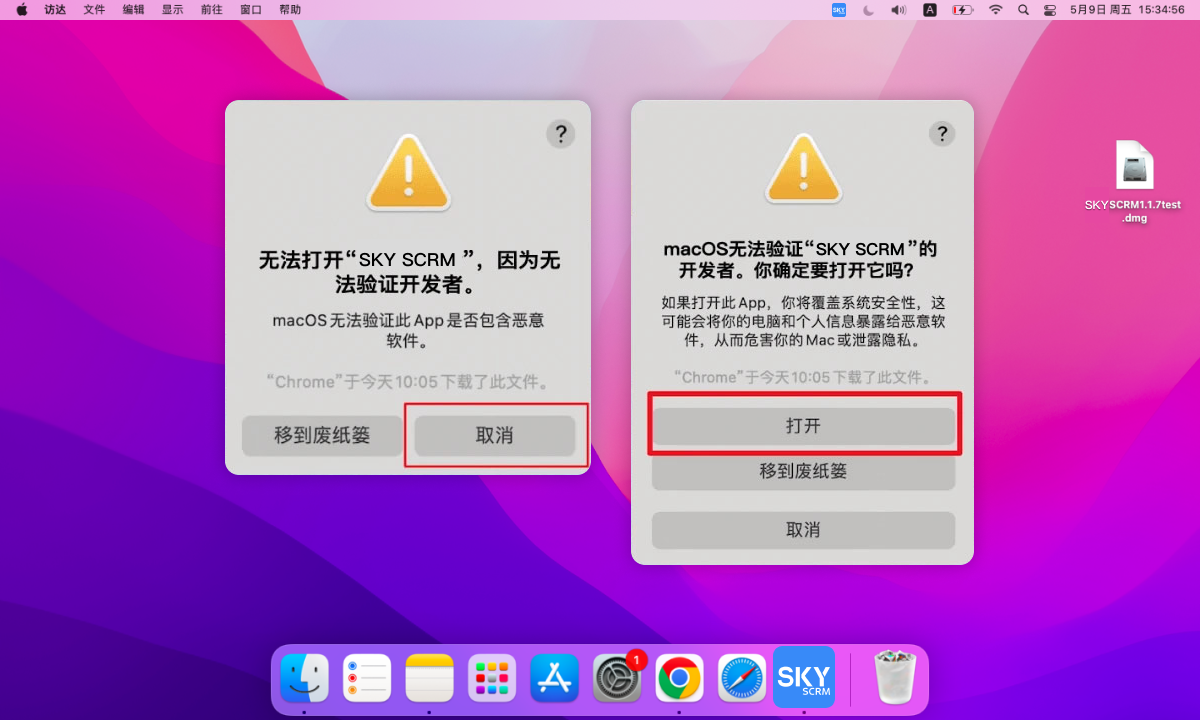
3. Click Cancel, then hold Control and click the SKY SCRM icon to open the application.
Capture every potential customer for your business! SKY SCRM - One-stop intelligent customer service system platform